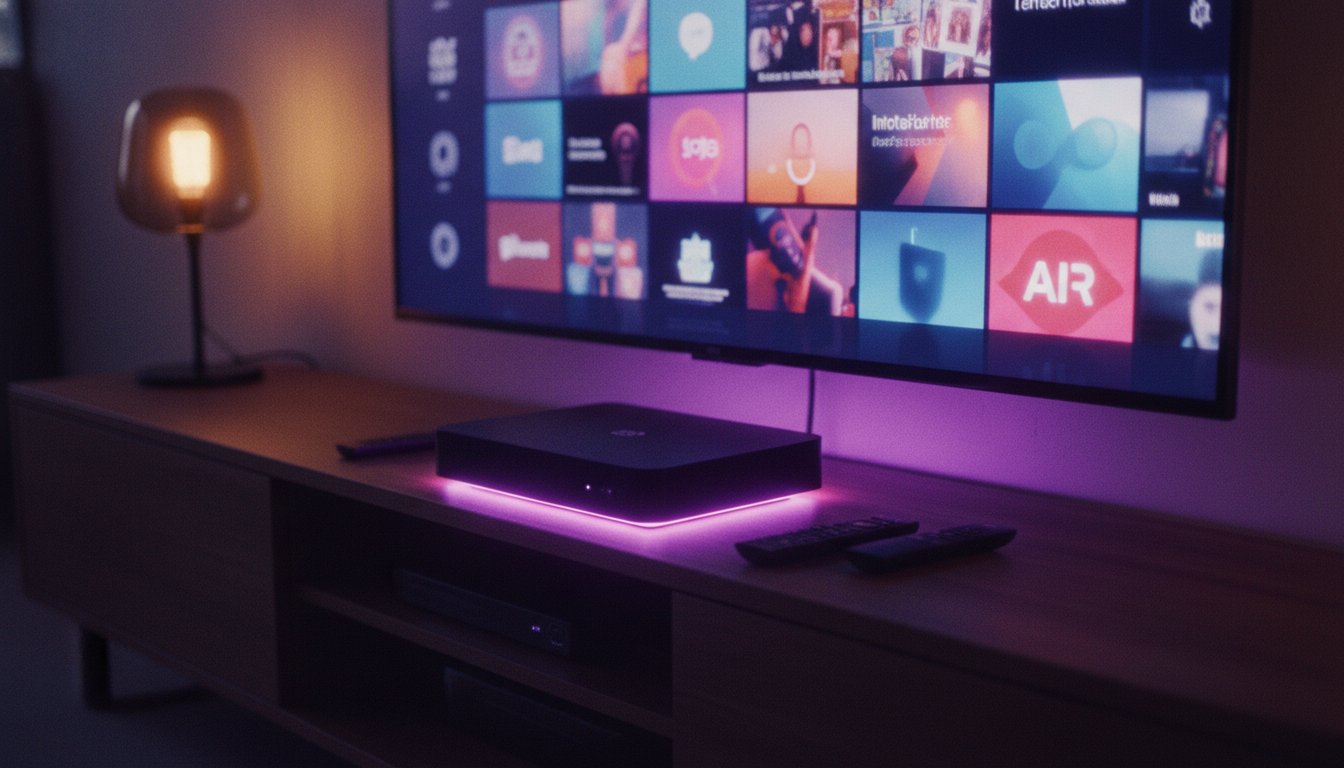
If you have ever subscribed to an IPTV service and then realised you had no idea how to actually get it onto your television — this one is for you. The Samsung Smart TV ecosystem is capable and well-supported, but finding the right IPTV player and configuring it correctly is not always obvious. Below is the exact process we recommend to all IPTV Pay subscribers using Samsung TVs.
Step 1: Prepare Your Samsung TV
Before installing anything, make sure your Samsung Smart TV is connected to the internet and that the firmware is up to date. An outdated Samsung firmware can cause app crashes that have nothing to do with IPTV itself.
To update: go to Settings → Support → Software Update → Update Now. If your TV is already on the latest version, you will see a "TV is up to date" confirmation.
Tip: A wired Ethernet connection is always more stable than Wi-Fi for live TV streams. If your TV is near your router, a short Ethernet cable makes a noticeable difference in buffering.
Step 2: Find and Install IBO Player Pro
For Samsung Smart TVs, we recommend IBO Player Pro — it supports both Xtream Codes API and M3U playlist formats, handles EPG beautifully, and has been stable across multiple Samsung TV generations.
- Press the Home button on your Samsung remote.
- Navigate to the Apps section (bottom row of the home screen).
- Open the Search field (magnifying glass icon) and type IBO Player Pro.
- Select the app from results and tap Install.
- Wait for the download to complete — it typically takes under a minute.
Once installed, the app appears in your Samsung app library. You can pin it to the home row for quick access.
Step 3: Launch the App and Choose Your Connection Type
Open IBO Player Pro. On the first launch you will be asked how you want to connect. You have two options:
- Xtream Codes API — Requires a Server URL, Username, and Password. This is the recommended method for IPTV Pay subscribers.
- M3U URL — Requires a single playlist URL. Use this if your welcome message includes an M3U link instead of individual credentials.
Select the option that matches what you received in your IPTV Pay welcome message via WhatsApp.
Step 4: Enter Your Credentials
This step is where most people make errors — typically a mistyped character in the server URL or password. Take your time here.
- Enter the Server URL exactly as provided — include http:// or https:// as shown.
- Enter your Username — this is case-sensitive.
- Enter your Password — also case-sensitive.
- Tap Connect or Add.
The app will fetch your channel list from the server. This can take 10–30 seconds depending on your internet speed and the size of your channel package.
Common mistake: Using the Samsung on-screen keyboard, it is easy to accidentally add a space after the last character in a URL or password. Always double-check the end of each field before confirming.
Step 5: Configure the EPG (Electronic Programme Guide)
A well-configured EPG turns your IPTV service from a channel list into a proper TV guide. In IBO Player Pro, EPG is usually loaded automatically when you connect with Xtream Codes — but if the guide is empty, you can force a refresh.
Go to Settings → EPG inside the app and tap Update EPG. Allow two to three minutes for the full guide to download. On first load it can take slightly longer.
Step 6: Organise Your Favourite Channels
IBO Player Pro lets you build a Favourites list so you are not scrolling through thousands of channels to find your most-watched content. While a channel is playing, press the OK button on your remote and look for a "Add to Favourites" option. Over a few sessions your personal channel lineup builds up naturally.
Step 7: Troubleshooting Common Samsung TV Issues
If your channels load but video does not play, try the following:
- Black screen: Switch the player from software decoding to hardware decoding in Settings → Playback.
- Audio but no video: Some streams use a video codec that requires hardware decoding — toggle the decoding mode.
- Channels not loading: Check that your Samsung TV's date and time are set correctly — wrong system time can cause authentication failures.
- App freezes: Clear the app cache from Settings → Apps → IBO Player Pro → Clear Cache.
For issues that persist after these steps, our FAQ page covers additional troubleshooting, or reach us directly via WhatsApp support.
Alternative: BOB Player for Samsung Smart TV
If for any reason IBO Player Pro is not available in your regional Samsung app store, BOB Player is a solid alternative. It has a slightly simpler interface and works well with portal-based IPTV connections. Search for it in the Samsung app store the same way.